


How to Create DFD with Visual Paradigm Desktop
Visual Paradigm Desktop is a comprehensive modeling tool that makes creating professional Data Flow Diagrams (DFD) straightforward and efficient. Whether you’re documenting existing systems, analyzing business processes, or designing new information systems, DFDs help visualize how data moves through a system. This guide walks you through the complete process of building DFDs — from context diagrams to detailed lower-level diagrams — using Visual Paradigm’s intuitive interface.
By following these steps, you’ll be able to produce high-quality DFDs that clearly communicate data flows, processes, external entities, and data stores. Visual Paradigm supports all standard DFD notations (Yourdon/DeMarco and Gane/Sarson), automatic leveling, diagram balancing checks, and export options for reports and presentations.
Step 1: Create a New Project and Diagram
Launch Visual Paradigm Desktop and select File > New Project to start a fresh workspace. Give your project a meaningful name, such as « Order Processing System DFD ».
Once the project is open, go to Diagram > New from the main menu. In the New Diagram window:

- Choose Data Flow Diagram under the Business category.
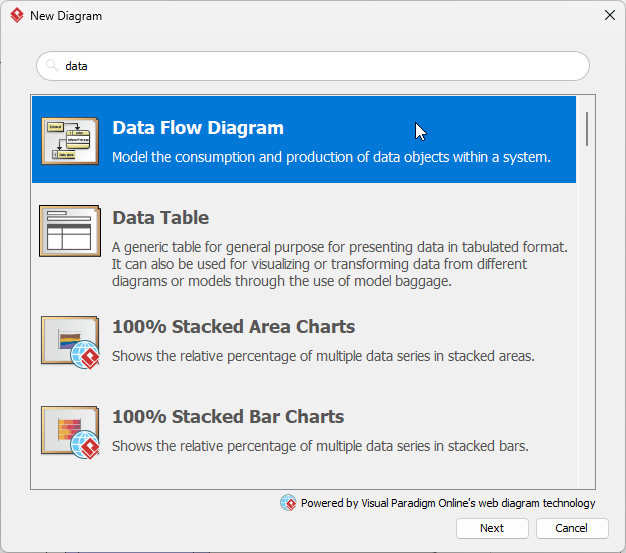
- Name your diagram (e.g., « ATM Context Diagram – Level 0 »).
- Click OK to create the diagram.
Visual Paradigm automatically opens a blank canvas ready for DFD elements.
Step 2: Draw the Context Diagram (Level 0)
The context diagram provides a high-level overview showing the entire system as a single process interacting with external entities.
- From the Diagram toolbar on the left, drag the Process shape onto the canvas.
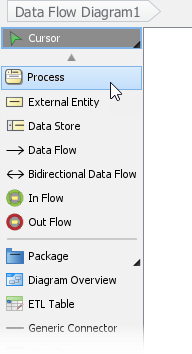
- Double-click the process and name it (e.g., « Order Processing System »). This represents your entire system boundary.
- Drag External Entity shapes (rectangles) from the toolbar and place them around the central process. Name them appropriately (e.g., « Customer », « Supplier », « Payment Gateway »).
- Use the Data Flow connector (arrow) to connect external entities to the central process. Label each arrow with the data being exchanged (e.g., « Order Request », « Invoice », « Payment Confirmation »).
- Arrange elements neatly using alignment tools or auto-layout (right-click > Layout > Auto Layout).
Tip: Right-click any element and select Open Specification to add detailed descriptions, notes, or documentation.
Step 3: Decompose into Lower-Level Diagrams
To create detailed views (Level 1, Level 2, etc.), decompose the main process:
- Right-click the central process in the context diagram.
- Select Decompose > New Data Flow Diagram from the popup menu.
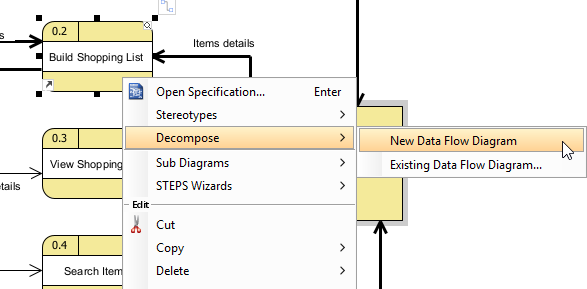
- Visual Paradigm automatically creates a new DFD and links it as a sub diagram.
- In the new diagram, replace the single process with multiple subprocesses (e.g., « Receive Order », « Validate Payment », « Generate Invoice », « Update Inventory »).
- Connect these subprocesses with data flows, and include Data Store shapes (open-ended rectangles) where data is stored (e.g., « Customer Database », « Product Catalog »).
- Ensure inputs and outputs from the parent diagram are preserved at this level (Visual Paradigm helps with balancing checks).
Repeat decomposition for any complex subprocess that requires further detail.
Step 4: Export DFDs
Export to PNG, PDF, SVG via Project > Export or generate rich HTML/PDF reports via Tools > Doc. Composer.
Best Practices for DFD Modeling in Visual Paradigm
Keep process names action-oriented (verb + noun), label every data flow clearly, avoid crossing lines using curved connectors, and use consistent notation throughout the project. Visual Paradigm’s grid snapping and alignment guides help maintain clean layouts.
Mastering DFD creation with Visual Paradigm Desktop empowers you to analyze and communicate complex data flows with clarity and precision — skills highly valued in business analysis, systems design, and software engineering.
Ready to start modeling your own systems? Download Visual Paradigm Desktop today and try creating your first DFD for free. Upgrade to a full license for advanced team collaboration, version control, and enterprise features. Visit our website or contact support to get started!
